


Does Hagar offer training on Deep Sea Electronics related products?
How do I do a Firmware update on a DSE module?
Updating the firmware of a DSE module
Important Note:
Updating the firmware completely flashes the module, therefore the settings will return to factory default. Make sure you save the modules settings to your PC before carrying out the update. Stopping the update process once it has started loading the update file could leave the module inoperable! If this occurs, simply run the update wizard again and let it complete correctly.
Steps:
- Go to tools and select ‘Update Firmware’

- Follow the instructions, a wizard will guide you step-by-step:
Select Next to continue.

- Select the device type and click Next to continue.

- Disconnect the USB and the DC power supply from the controller, click Next to continue:

- Select Browse to find the firmware update file you require, then click Next to continue:

- Please ensure you select the correct update folder:

- In this folder you must select the firmware update file you require:

- Select the correct module variant, i.e., the 7310 DFU file will not work on a DSE7320:

- Select Next when the correct file has been selected:

- Now first reconnect the USB cable and then DC power to the module. The update will start automatically. The controller LCD display will go blank until the upgrade is completed.

After the upgrade is completed, you can now start programming the controller.
- File not compatible “Incompatible Hardware”
If the file you attempted to send to the module is not compatible with the currently connected module, the update cannot continue. In this example an attempt was made to send a DSE8660 firmware file to a DSE8610 module. All that you need to do is redo the update process but this time brows for another software version (Try another file that is different and correct from the one you have selected).

How do I Download & Install the DSE Configuration Suite software?
DSE Configuration Suite Download & Installation Instructions
Minimum System Requirements
Operating System: Windows 7, Windows Vista, Windows XP with Microsoft™ .Net® 4.0 framework
Monitor: 17 inch recommended (1024 x 768 resolution)
- Communications: USB required to configure the module.

Download Steps
To download the DSE Configuration Suite installer, go to the www.deepseaelectronics.com website. Create a login account, if you haven’t already got one, and then log in to the website.
Download the DSE Configuration Suite installer by typing in “PC software” in the search bar.
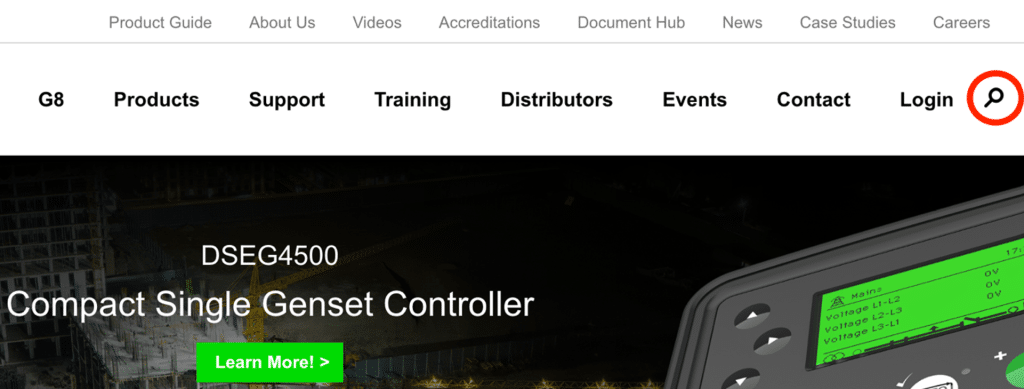
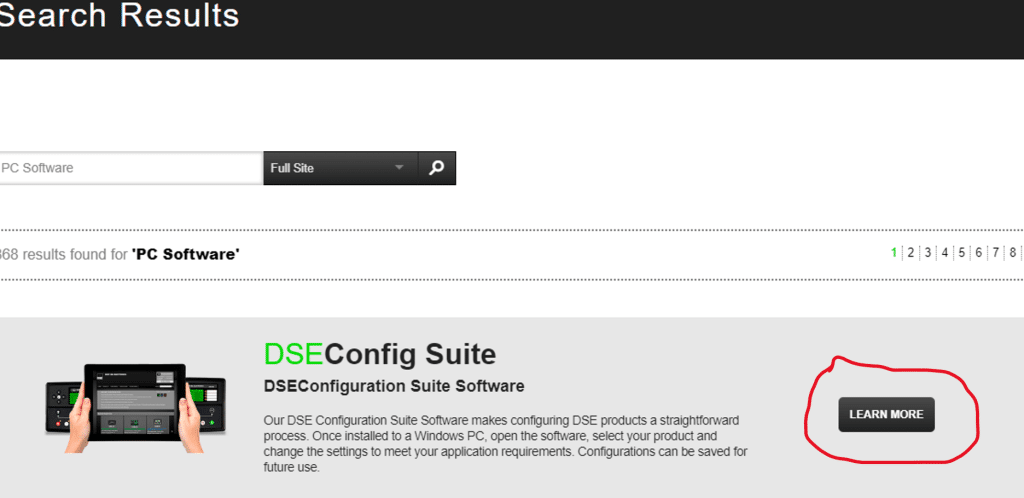
Click on learn more.
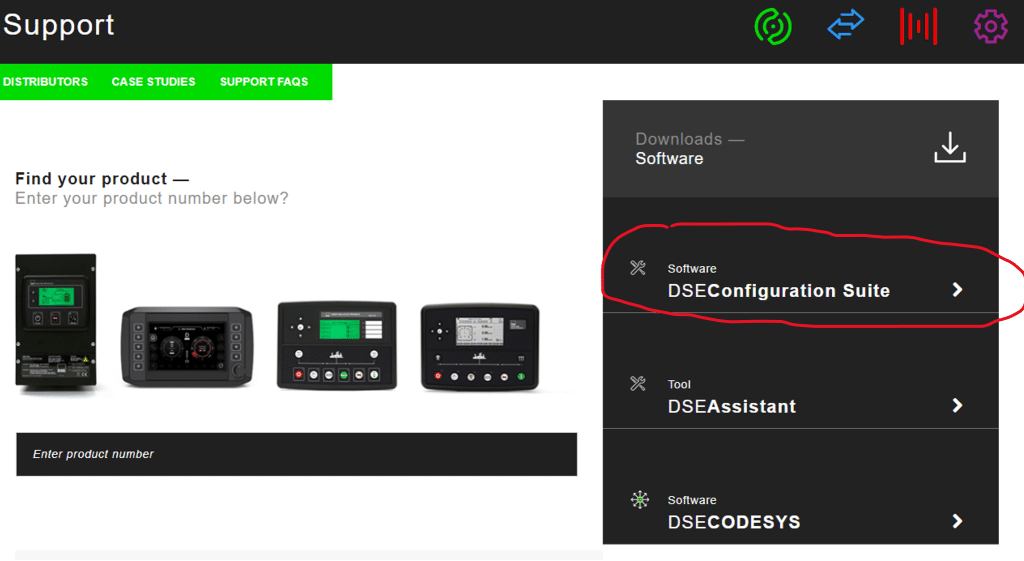
Click on ‘DSEConfiguration Suite’ to download the installer, the download will automatically start once you clicked on the text.


Installation Steps
After the download is complete Launch the DSEConfiguration suite installer under downloads on your PC…
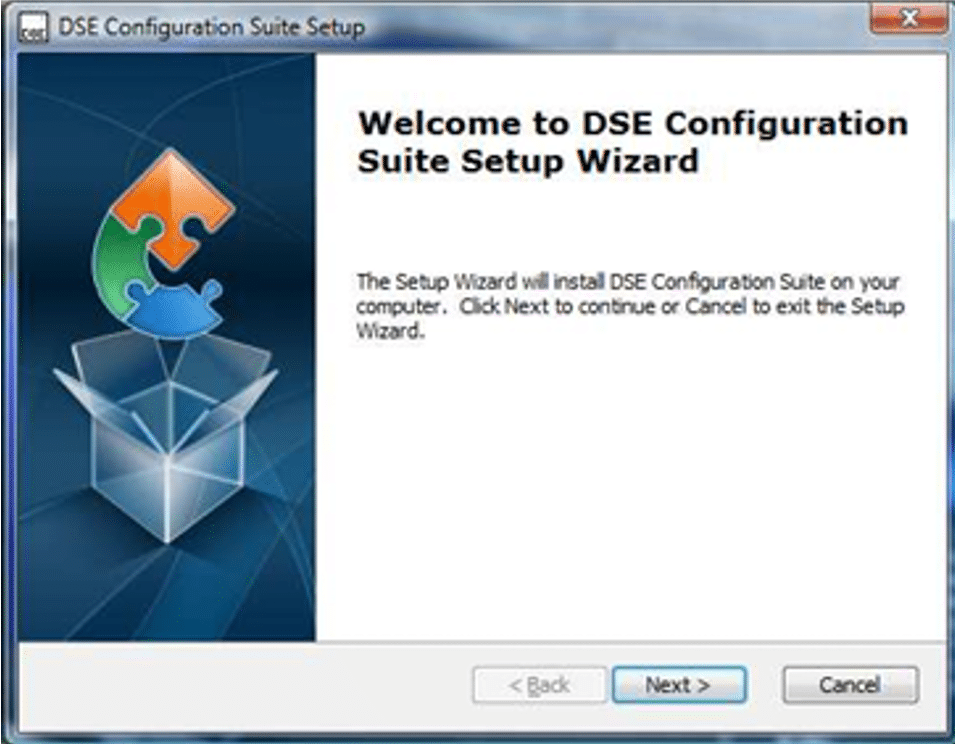
Click Next to continue.
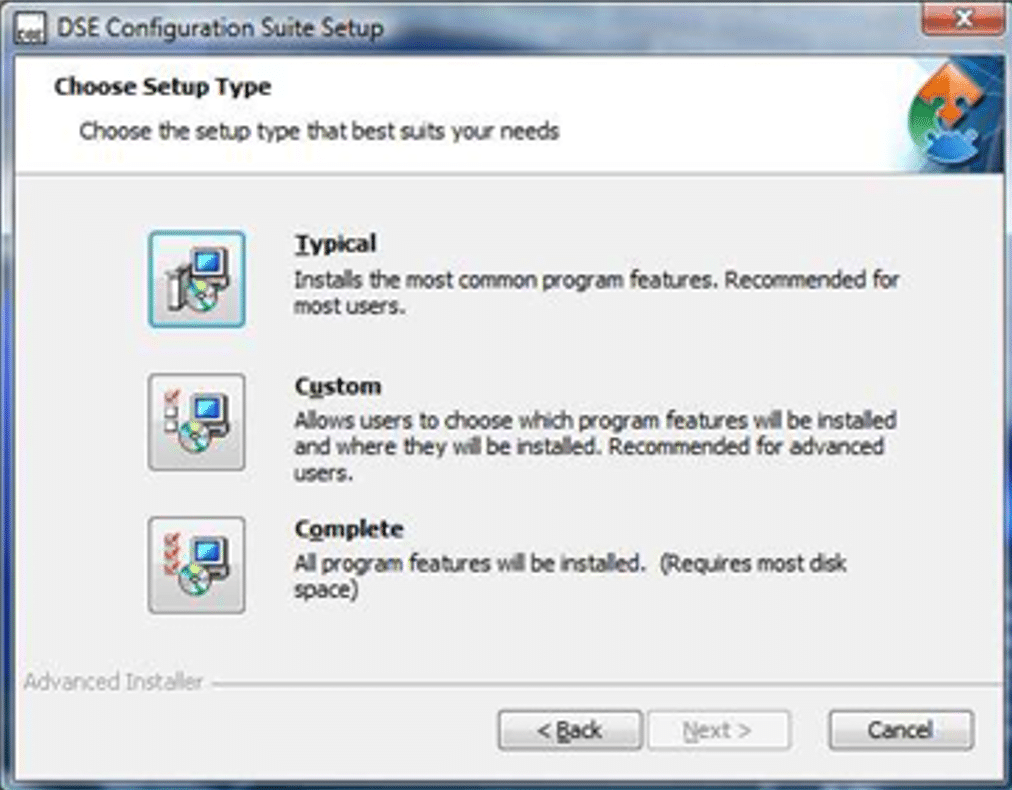
Select either:
“Typical” – for only the DSE configuration suite
“Custom” – for Custom Select between All DSE Features
“Complete” – for the DSE configuration suite + DSE Scada configuration Suite Viewer + DSE Scada configuration Suite Editor
Select typical. Then Click on next to continue.
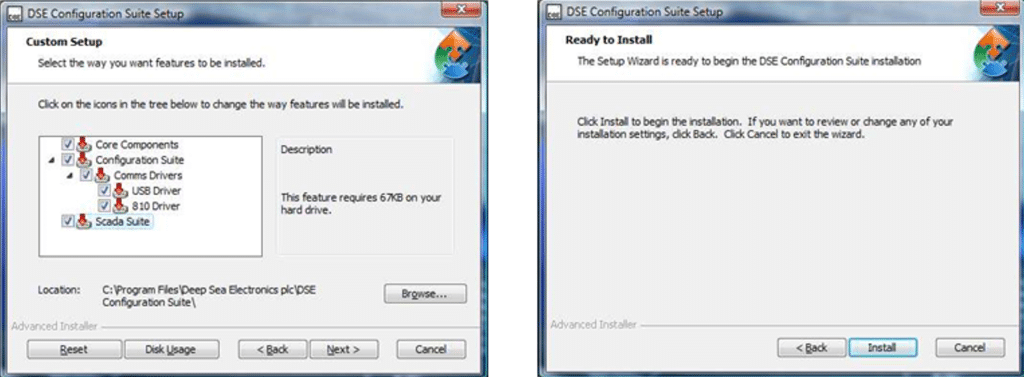
Click on next to continue.
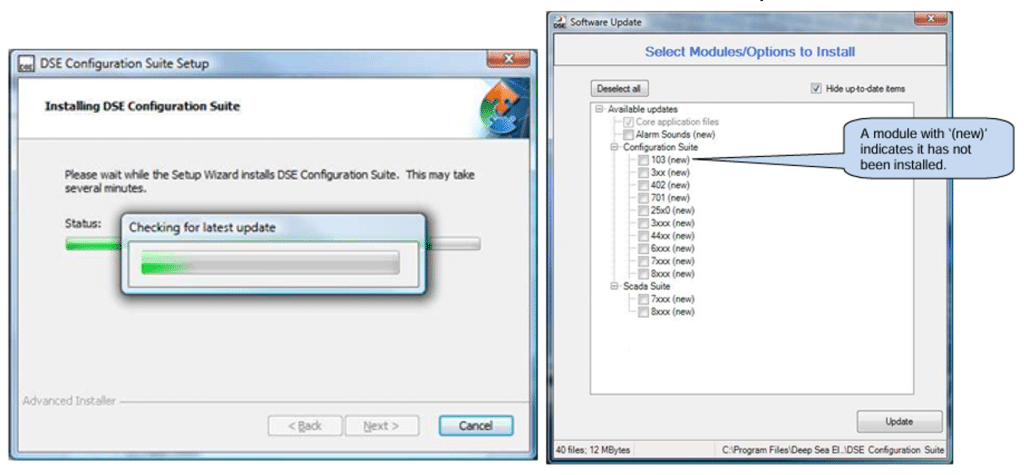
Select Install.
Wait for the installation to load.
Move the loading window away from the center of your screen, as there will be a pop-up window behind the loading window, asking for your username and password.
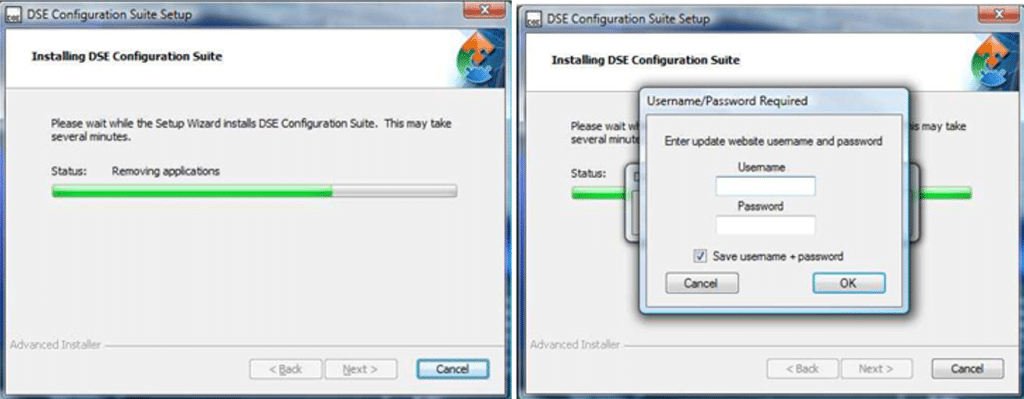
- Type in Your www.deepseaelectronics.com login details.
Select the modules to be installed with the software, click update to continue
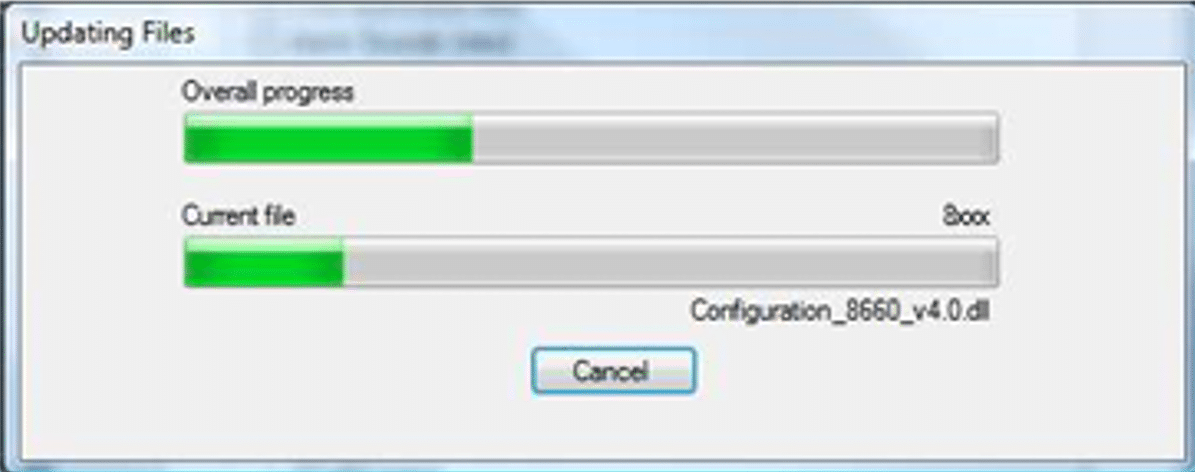
Wait until the update is finished.
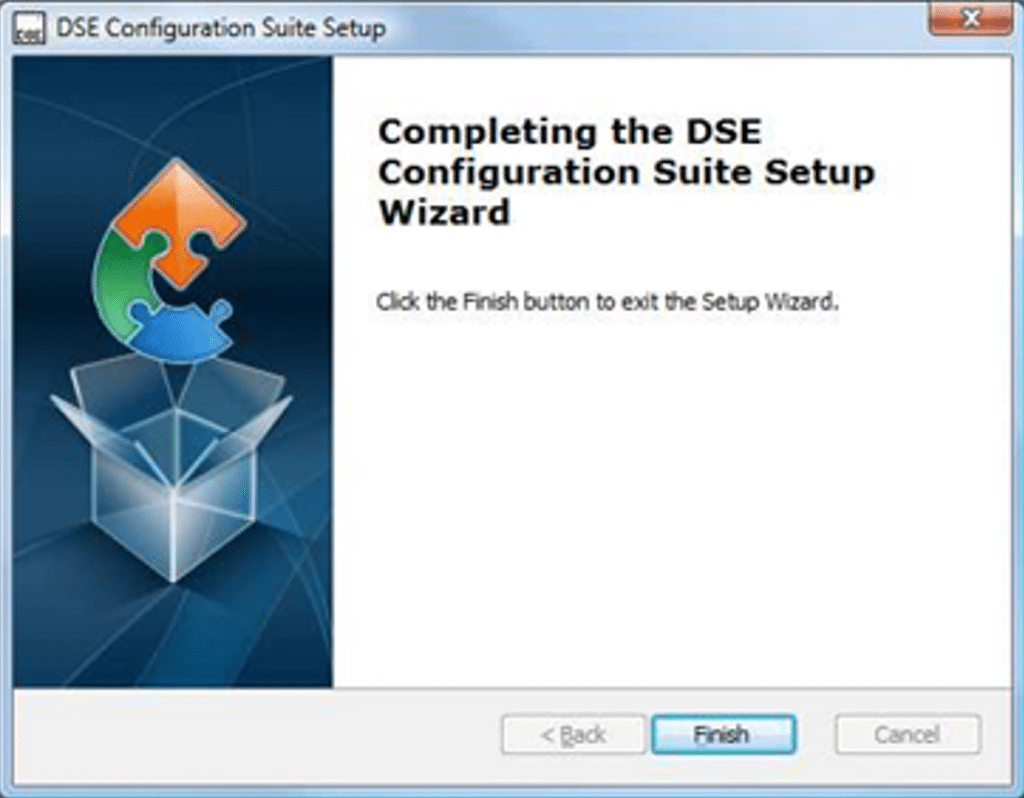
Click on finish, and now you can launch the fully installed DSEConfiguration suite.


How do I program a Remote Start or Simulate Mains Available (for use with inverters) input on a DSE module?
How to program a Remote Start & Simulate Mains Available input on a DSE module and how they function
NB! Programming an input will require that you are connected to the DSE module with your PC and the configuration file needs to be downloaded on your PC.
Please follow the below steps to configure a remote start request:
Read the controller configuration settings by pushing the F5 key or selecting File – Read from module…

Navigate to Inputs – Digital Inputs, and select which input you wish to configure.

There are 2 methods of configuring a digital input for an automatic start request:
- Simulate Mains Available
- Remote Start – On load – Off Load
NOTE: If a DSE module is in Manual mode and the engine is not running, Remote Start Input Functions will not produce an engine start. To allow Remote Start Input Functions to issue start requests, the DSE module must be in Auto mode.
NOTE: If a DSE module is in manual mode and the engine is running, the Remote Start on Load input will open the mains and transfer load to the generator. Once the input is removed the generator will remain loaded until instructed to change state by an alarm or manual command.
- Simulate Mains Available – This is used to start the generator based on mains status. When this input is active the controller will simulate a mains/Eskom healthy state/condition, and the Mains available LED will illuminate regardless of the Mains state/condition. This means that if there is a mains failure and this input is active, the generator will NOT start when the controller is in Auto. If you deactivate the input, the controller will look at the actual status and behave as a normal AMF (Automatic Mains Failure) module. Therefore, when this input is inactive and there is a mains failure and the DSE module is in Auto mode, the generator will start-up, as per the normal function and design.
- Remote start on load – Is used to instruct the generator to start and close its generator breaker onto the load, regardless of mains state/condition. When this input is active, and the DSE module is in the Auto mode, the generator will start-up, open the mains and close the generator breaker onto the load. If this input is de-activated the DSE module opens the generator breaker, returns the mains to load and the generator cools down.
- Remote start off load – If this input is active, operation is similar to the ‘Remote Start on load’ function except that the generator is not instructed to take the load. It is used to instruct the generator to start and run, leaving the generator breaker open. When this input is active, and the DSE module is in the Auto mode, the generator will start-up, the mains will remain closed and the generator breaker will remain open and off load. If the mains/Eskom fails, the mains breaker will open and the generator breaker will close onto the load – Mains failure has the highest priority over all of the inputs. If the mains remains in a healthy state/condition and this input is de-activated, the DSE module instructs the generator to stop, which occurs immediately, with no cooldown.
Examples
- Simulate Mains Available.
If you have an inverter with backup batteries, you may not wish to run the generator during a mains failure state/condition. That is because you would be relying on the PV yield/production (if panels are installed) and the batteries to sustain your load. As we all know, these sources of power cannot sustain your load forever, so therefore if your batteries reach a certain SOC (State of Charge) AND the mains is still in a failed state/condition, you would need to send a signal to the generator to call on the diesel emergency power source.
In this case ‘Simulate Mains Available’ is typically used. We usually configure a ‘Simulate Mains Available’ – ‘Open to Activate’ input, this is because of the inverter has a dry, voltage free, normally open contact. Therefore during normal conditions, the DSE module will always have the ‘Simulate Mains Available’ input active, as there is no signal from the inverter (open). Once the SOC has reached a minimum level, the inverter will close its contact, thereby closing the ‘Simulate Mains Available’ digital input on the DSE module, thereby removing the ‘Simulate Mains Available’ function. IF the mains is still in a failed state/condition, the DSE module will instruct the generator to run and take load – This diesel power would then be used to supply the load/s and to charge the batteries.

- Remote start
We have already explained earlier in this document on how the Remote Start input is used and how it functions. We are going to be using the inverter example again; When using a DSE AMF module, which monitors mains and you have an inverter in your application setup and wish to run the generator upon inverter signal only (no mains failure), then ‘Mains Failure Detection’ will need to be disabled. This can be achieved by going to the Mains section in the Configuration Suite and deselecting the ‘Mains Failure Detection’.

Configure the Remote start input as ‘Remote start on load’ either as open or close to activate, depending on your wiring and relay logic.

Write the settings back to the DSE module.
Now the DSE AMF module will no longer respond to a mains failure when in Auto, instead it will await the ‘Remote Start on Load’ input to become active, before starting the generator.
Inverter Remote Start Wiring to DSE module.
NB! Remember , if the ‘Remote Start on Load’ or ‘Simulate Mains Available’ input is set to ‘Close to Activate’ in the DSE module, then you need a close signal from battery negative (0V – Ground) to activate the input, and vice-versa if set to ‘Open to Activate’.
Reference is made to the DSE7320 AMF module for this drawing and example.

How do I remove the PIN lock from a password protected DSE module?
Removing the PIN lock from a password protected DSE module
Password removal can only be done if you have the password. To reset the password you need to go to the ‘Scada Section’, under ‘Maintenance’ and then ‘Module Lock’. To remove the module lock, you must set the PIN to 0000. If all the numbers are zeros then the PIN is deactivated.


Accumulated Instrumentation Lock is a permanent setting and cannot be reset. Once this lock is set you can newer remove this PIN, unless you have the PIN.
If you cant get the original PIN or have misplaced it, you will have to send the DSE unit to Hagar Distribution for repairs. The unit will then be shipped to DSE UK for PIN removal. This proccess will wipe the controller clean meaning the configuration that was loaded on the unit will be lost. Please contact tertius@hagar.co.za or info@hagar.co.za for more information on costing and repairs.
How do I reset the Maintenance Alarm on a DSE module?
How to reset the Maintenance Alarm on a DSE module
Important note:
If you want to reset the maintenance alarm via the Configuration Suite, you will have to be connected to the controller to access the Scada Suite.
Maintenance reset will reset the maintenance interval on the internal clock. This is done by opening the Scada section in your configuration file.
There are three methods of resetting the maintenance alarm:
One – The Scada Suite.
Two – On the module front panel if the ‘Allow Maintenance Alarm Reset on Module Front Panel’ has been enabled.
Three – As a Digital input the maintenance alarm can be reset upon signal.
Method One – Scada Suite:
NB! You will need to have the DSE Configuration Suite on you PC and your PC plugged in to the controller.
- Open Configuration Suite:

- Select the Scada block and the Scada Suite will start loading:

NB! You need to be connected to the module itself to get the live data from the module.

- Select the Maintenance block after the Scada Suite has loaded.

4. Select the ‘Maintenance Alarm Reset’ function.

5. Select the Reset button on the alarm you wish to reset, and the alarm will reset:
Method Two – Front Panel:
NB! If you do the following steps and find that it does not work that means a setting on the Configuration Suite Called ‘Enable Maintenance Reset On Module Front Panel’ Has not been ticked under the Module options. And the Configuration Suite will be needed to do the reset.
- Go to the ‘Engine’ section on the screen using the navigational buttons:

- Scroll down until you see ’Maintenance Alarm’, Then hold in the Stop button in until alarm resets you will visually see the Alarm hours reset on the display.

Stop Button Must be held in.
NB! If the Maintenance alarm is not present on the ‘engine’ screen, then the ‘maintenance alarm reset on front panel’ setting has not been activated.
Indication of where to find the ‘Enable Maintenance Reset On Module Front Panel’ setting on the Configuration Suite

Method Three – Digital Input:
NB! You will need to have the Configuration Suite on you PC and your PC plugged in to the controller. The digital input will have to be configured firstly, after the configured input has been set to ‘Maintenance reset’ (either 1,2 or 3) as there are 3 maintenance alarms to consider, the input can be used to reset the alarm.
- Open the Configuration Suite:

2. Make sure you are connected to the controller by looking for the module part number in the block:

- Read from the controller by clicking on the ‘Read from Module’ icon:

NB! Wait for the configuration to finish loading.

- Navigate to Digital Inputs and choose which Input you would like to configure as a Reset Maintenance Alarm:

- Configure the Reset Maintenance Alarm input as ‘Reset Maintenance Alarm 1 or 2 or 3’ either as Open or Close to Activate:

- Click on the ‘Write to Module’ Icon next of the ‘Read from Module’ icon:

NB! Please make sure your controller is in the stop mode before attempting to write to the module.
You will reset the maintenance alarm by pushing the red stop button, while making sure the configured ‘Reset Maintenance Alarm’ input active (Open – If open to activate. Closed – If close to activate).
How do I set the Date & Time on a DSE module?
How to set Date and Time:
Important note:
There are two ways of setting the date and time
1. Front Panel – If you do not have a laptop and just want to set the time and date on the controller front side using the Front buttons.
2. DSE configuration suite/Scada – Quick and easy way of correcting the setting Using the DSE Configuration suite.
If you experience frequently incorrect time settings, we suggest using the 890 Gateway to update the time automatically.
1. Front panel:
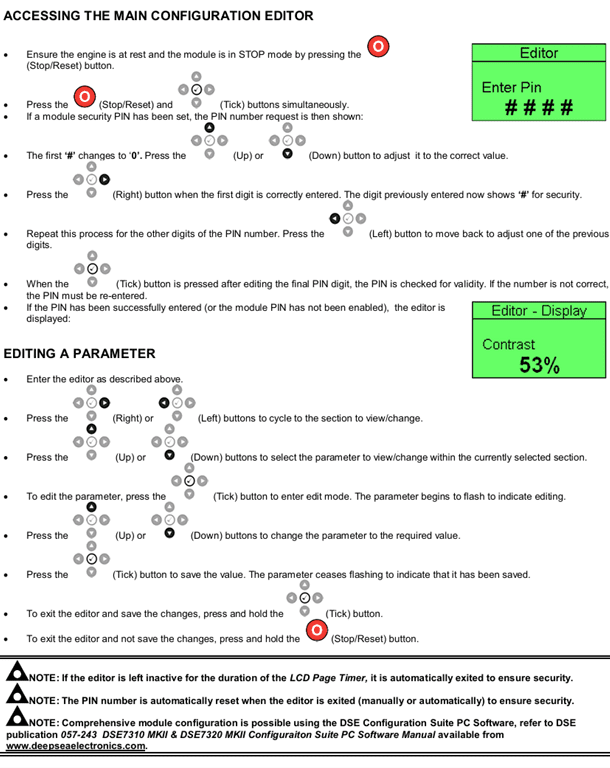
Steps
- Access the front panel editor
- On the “Display” screen Scroll “down” until you see the Date & time parameter
- Select the “date & time” parameter for editing.
- Set the parameters, save and exit

2. Scada Suite:
Once plugged into the controller open the DSE configuration suite and click on the “Scada” block.

1. Select “Maintenance”

2. Select “time”

3. Select “Set to PC time”
How do I set the Engine run time & number of starts on a DSE module?
How to set Engine hours run & number of starts on a DSE module
Steps:
- Once plugged into the controller open the DSE Configuration Suite and click on the “Scada” block.

- Select “Maintenance”

- Select “Hours Run and number of starts”

- Set the Hours and number of starts

How do I set the exercise Scheduler function in a DSE module?
How to set the exercise Scheduler in a DSE module
Important Note:
There are two methods of setting the Inbuilt Scheduler:
- The DSE Configuration suite.
- On the module front panel
- The DSE Configuration Suite.
- Open the DSE configuration suite and click on the “Scheduler” block.

- Enable the Built in scheduler by selecting “Scheduler Options” and tick the “enable Exercise Scheduler


- Go to Bank 1 or bank 2, (A Bank can only be used one time per day, the scheduler gives us two banks meaning we can have two schedules active in one day) set up the parameters as seen in the example
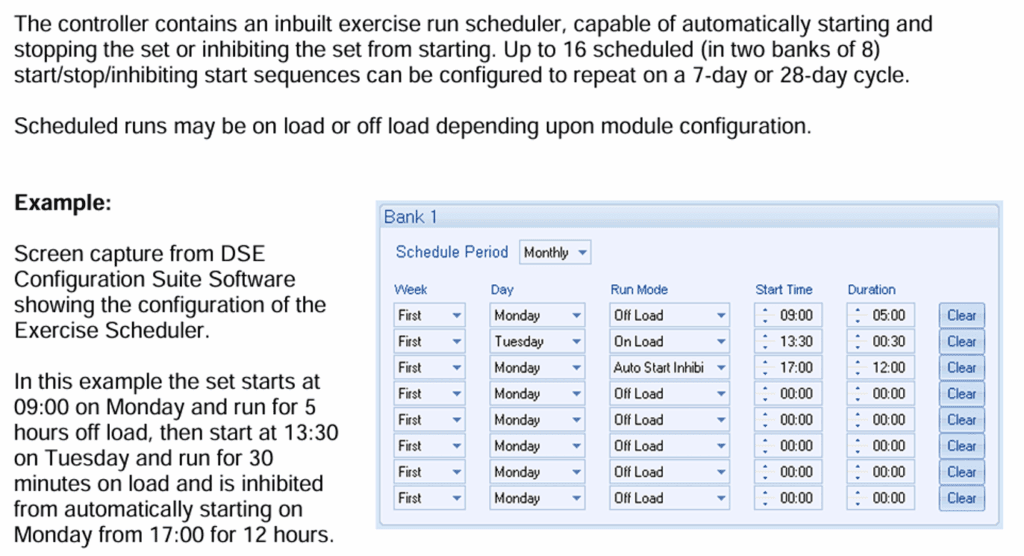
Note “Duration” is measured in hours(max=99) : min(max= 99). Do not misinterpret this as the end time. Count from the “start time” and add the “duration” to get to the desired end time.
- On the module front panel
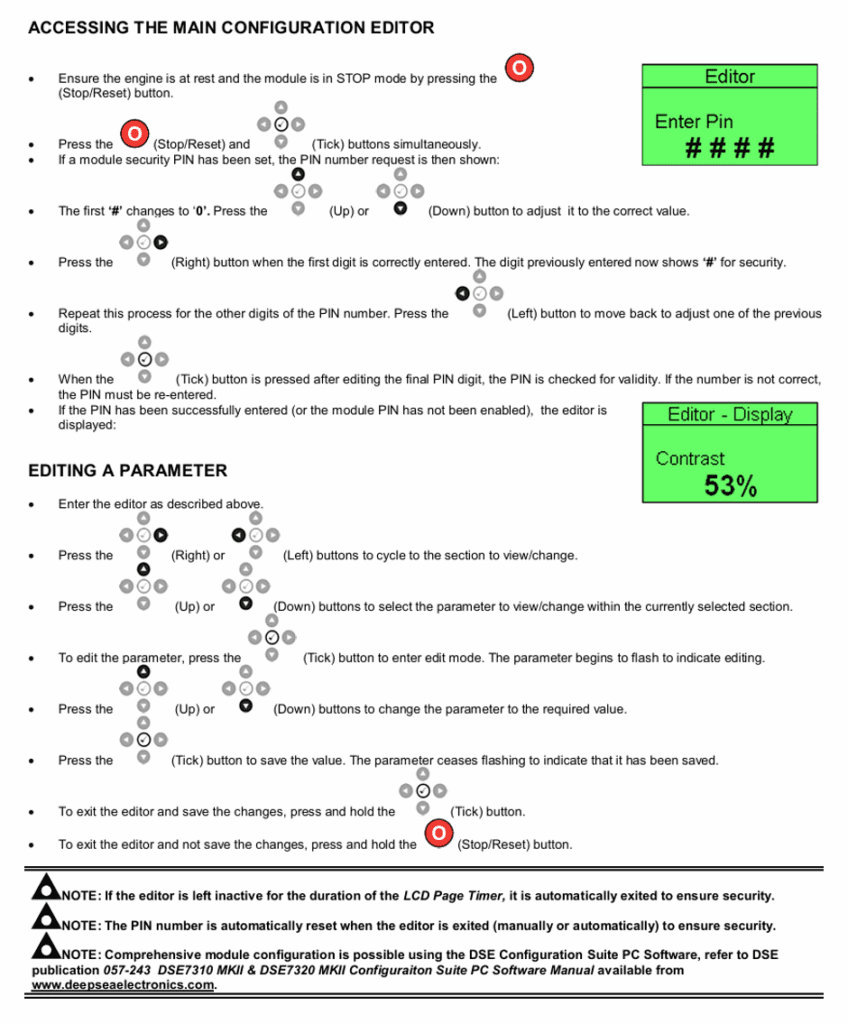
Steps
- Access the front panel editor
- On the navigate to “Scheduler” screen. Set the parameters, save and exit
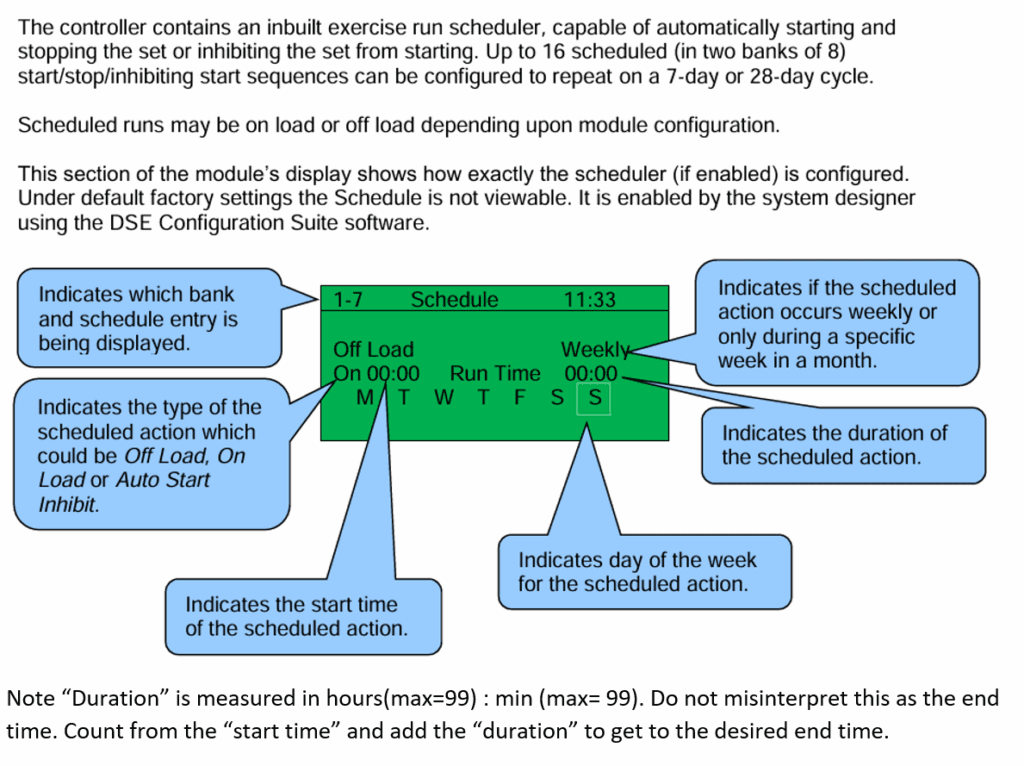
Note “Duration” is measured in hours(max=99) : min (max= 99). Do not misinterpret this as the end time. Count from the “start time” and add the “duration” to get to the desired end time.
Modes of Scheduler operation: